Summary
- Connecting Notion, Google Drive, or SharePoint to Kota gives the AI search and retrieval access only; it cannot create, edit, or delete files in those sources.
- Use workspace-level credentials for production AI connections, not personal accounts, so integrations stay stable and auditable when employees change roles or leave.
- Start with read-only retrieval; write tools are separate, explicitly enabled, and never part of knowledge connector setup.
- Scope access during setup with platform-specific controls, and verify accurate citations after indexing, which can take 36 to 72 hours.
- Kota CMS gives RevOps a governed, read-only AI layer across Notion, Google Drive, and SharePoint, with data access and workflow rules reviewed separately.
How to Give Your Sales AI Read-Only Access to Notion, Google Drive, and SharePoint
Sales content lives everywhere. Playbooks sit in Notion, competitive decks live in Google Drive, onboarding materials are buried inside SharePoint sites, and the answer a rep needs mid-call is in a folder someone else owns. The central problem is that no single tool surfaces the right information at the right moment. That is the drift problem behind Why Sales Knowledge Has No Home, and this post is the setup half of the fix.
A sales AI connected to these sources can close that gap. Before approving any integration, RevOps and IT teams require a precise answer about what connecting an app gives the AI permission to do.
This article explains how the tool-permission model works, what the difference between workspace credentials and personal connections means in practice, and how to scope access so that the AI reads what it needs and nothing else.
What Connecting an App Gives the AI
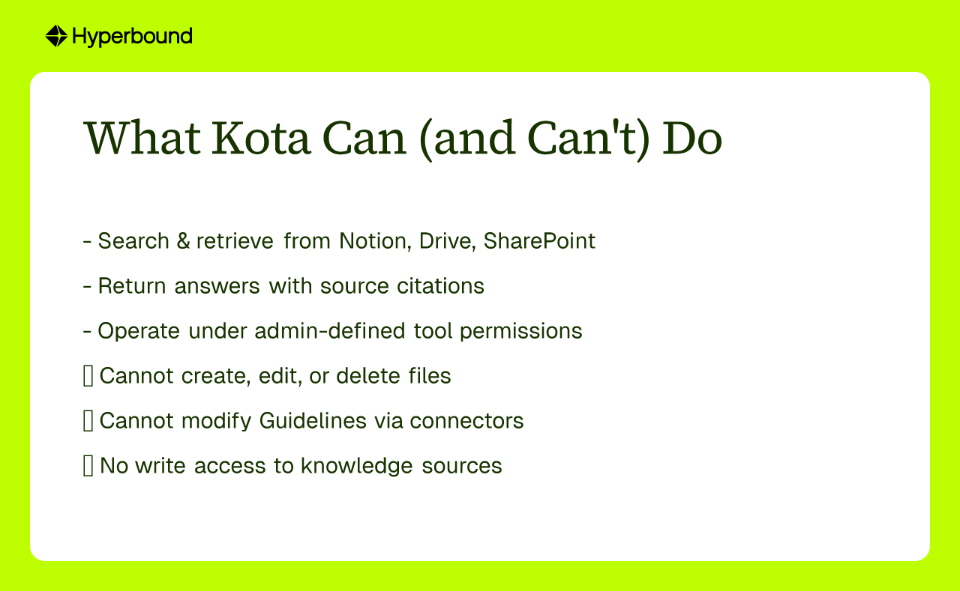
Connecting an app does not give the AI open-ended access to everything inside it. Kota CMS, Hyperbound's agentic content management platform, controls access through a tool-permission model: admins decide which specific tools Kota can use within each connected app, not just whether the app is connected at all.
For knowledge sources like Notion, Google Drive, and SharePoint, the available tool is search and retrieval. The AI can find documents, read their contents, and return answers with citations. It cannot create, edit, or delete files in those sources.
One distinction matters here: connecting an app does not write Guidelines. Connectors give Kota read access to search for information. Guidelines are a separate mechanism that defines how retrieved information is used inside a specific workflow. The two are independent. A connected Google Drive adds a knowledge source; it does not change any workflow rule.
Write capabilities apply to purpose-built action tools in separate applications, such as posting a message to Slack. They are distinct, separately enabled tools. Admins enable them deliberately, not by default.
This mirrors the governance principle Microsoft applies to its own AI agent deployments: agents should operate under a framework of empowerment with established guardrails, kept useful, safe, and properly scoped. The tool-permission model is how that principle becomes a concrete technical control.
Workspace Credentials vs. Personal Connections
How an integration authenticates matters as much as what it can access. Tying a production connection to an individual employee's account creates operational fragility. When that account is deprovisioned, the integration breaks. When the employee changes roles, the permission scope silently shifts. Shared personal credentials carry the same problem: they are difficult to scope to least privilege and create audit gaps.
The correct approach is a workspace-level credential. This is an admin-level, organisation-scoped identity that is centralized, auditable, and independent of any individual user. It functions similarly to a service principal in that it represents the application itself, not a person.
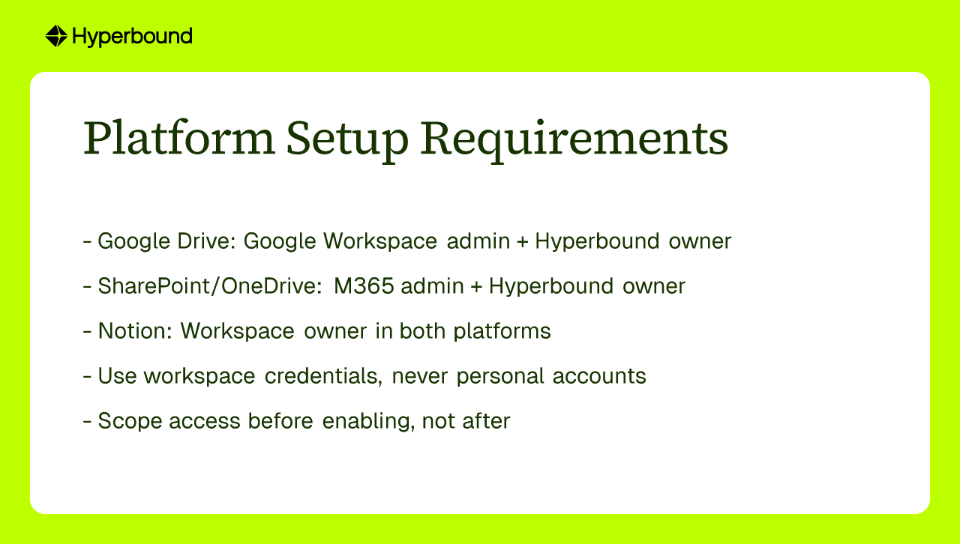
Connecting Notion, Google Drive, or SharePoint to Kota requires dual-admin confirmation. The person completing the setup must be a workspace owner in Hyperbound and an admin in the target application. For Google Drive, that means a Google Workspace admin. For SharePoint and OneDrive, that means a Microsoft 365 admin. This requirement is a deliberate control. It ensures that IT retains oversight of what is connected and under which identity.
Read-Only vs. Write Tools
The clearest safety boundary in the connector model is the separation between read tools and write tools.
Read tools allow the AI to search repositories and retrieve document contents. For Notion, Google Drive, and SharePoint, this is the default and, for knowledge connectors, the only available tool category. The AI surfaces information and provides citations linking back to the source document. Those citations are not only useful for the rep; they function as a verifiable audit trail that a security reviewer can use to confirm the AI retrieved information from an approved source rather than generating it without grounding.
Write tools allow the AI to create or modify content. These are isolated to specific applications, enabled explicitly, and not part of knowledge connector setup.
Microsoft's agent maturity model offers a useful framing for RevOps teams evaluating how far to extend AI access:
- Human with AI assistant: the AI searches and reads; a human acts on the result.
- Human-agent teams: agents take on defined tasks alongside humans.
- Human-led, agent-operated: agents execute workflows within approved boundaries.
Connecting Notion, Google Drive, and SharePoint to Kota sits at Stage 1. That is the appropriate starting point. It requires no write permissions, carries the lowest risk profile, and gives RevOps a clean baseline from which to evaluate whether further capability extensions are warranted.
Scoping Access for Each Platform
Correct setup requires applying the permission model to each connector's specific identity requirements, scoping levers, and known limitations.
Google Drive
To connect Google Drive to Kota, the installer must be both a Google Workspace admin and a Hyperbound workspace owner. As a best practice, install the connector for all users in the organisation rather than a subset, so individual users are not excluded from the indexed content pool.
Scoping levers are available at two levels:
- In the AI's connector settings: exclude specific shared drives from indexing.
- In the Google Admin Console: exclude entire user groups or organisational units (OUs) from the connector's scope.
Known limitations to document before deployment:
- Files larger than 10 MB are not indexed.
- Google Workspace target audiences are not supported for permission filtering.
- Files shared via "Anyone with the link" must have been opened at least once to appear in the index.
- Supported file types are Google Docs, Slides, Sheets, and uploaded PDF, .docx, .pptx, .xlsx, and .csv files.
Setting Up the First Connection: The Connectors Tab
Hyperbound's setup process follows the principles above.
- Navigate to the Connectors tab in Hyperbound settings.
- Select the app to connect: Notion, Google Drive, or SharePoint.
- Authenticate using administrator credentials for both Hyperbound and the target application. The dual-admin requirement must be satisfied for the connection to proceed.
- Define the scope. For SharePoint, select "Customize connected content" and specify the sites or users to include. For Google Drive, exclude any shared drives that fall outside the approved knowledge boundary.
- Confirm the connection. Allow time for the initial content ingest. Depending on content volume, indexing can take up to 36 to 72 hours before the full corpus is available for retrieval.
Do not treat the connection as complete until the AI is verified to return answers with accurate citations from the expected source documents. That verification step confirms both that the scope is correct and that the indexed content reflects the permissions intended for the connection.
What RevOps Approves, and What Stays Separate
The connector model gives RevOps a clear scope to evaluate and approve. The AI reads from defined sources, under a workspace credential, with no write access to those sources. Citations provide a verifiable record of what was retrieved and from where. Admins can expand or restrict the connected scope at any time.
The model does not automatically configure how the AI behaves in workflows. Connectors supply the knowledge. Guidelines, configured separately, determine which knowledge applies to which workflow and how the AI is expected to use it. Approving a connector does not approve a workflow configuration. The two require independent review.
This separation is intentional. It allows IT and RevOps to evaluate data access governance independently from workflow governance, using the criteria and review processes appropriate to each.
Getting Access
These capabilities are part of Kota CMS, a paid add-on for Hyperbound currently in private preview. Kota CMS enables agentic content management across the knowledge sources sales teams already use, with the permission controls described here applied by default.
Private preview capabilities, scope, and availability are subject to change as we continue development and incorporate customer feedback.
To get started, request access through your Hyperbound account manager.
Frequently Asked Questions
What does connecting Google Drive to Kota allow?
Connecting Google Drive gives Kota search and retrieval access only. The AI can find documents, read their contents, and return answers with citations, but it cannot create, edit, or delete files. This read-only scope is controlled by admin-defined tool permissions and applies to the connected workspace credential.
What is the difference between workspace credentials and personal connections for AI sales tools?
Workspace credentials are admin-level, organisation-scoped identities that remain stable when employees leave or change roles. Personal connections, by contrast, break when an account is deprovisioned and can silently shift permissions when a user changes roles. For production AI access, workspace-level credentials provide central auditability and least-privilege scoping.
What permissions are needed for Google Drive connector setup?
To connect Google Drive, the installer must be both a Google Workspace admin and a Hyperbound workspace owner. After connection, admins can scope access by excluding specific shared drives in the connector settings or by excluding user groups and organisational units in the Google Admin Console. This keeps the AI's searchable content within approved boundaries.
How long does content indexing take after connecting a knowledge source?
Initial content ingest can take between 36 and 72 hours depending on content volume. Teams should verify that the AI returns accurate citations from expected source documents before considering the connection complete. This verification confirms both that the scope is correct and that the indexed content reflects the intended permissions.
What happens if an employee who connected an app leaves the company?
If the connection was made with a personal account, the integration breaks when that account is deprovisioned and permissions may silently shift. That is why production connections should use workspace-level credentials, which represent the application itself rather than an individual. This keeps access stable, auditable, and independent of any single employee's role.
Do connectors automatically change how the AI behaves in sales workflows?
No. Connectors supply knowledge sources only. Guidelines, which are configured separately, determine which knowledge applies to which workflow and how the AI uses retrieved information. Approving a connector does not approve a workflow configuration; data access governance and workflow governance remain separate review processes.
Is there a read-only way to test AI content access before enabling write tools?
Yes. Connecting Notion, Google Drive, or SharePoint starts at the read-only stage, which is Stage 1 in Microsoft's agent maturity model: human with AI assistant. This stage requires no write permissions and carries the lowest risk profile. RevOps can evaluate retrieved answers, citations, and permission enforcement before deciding whether any further capability extensions are warranted.
Want to see Hyperbound in action?
Try it now